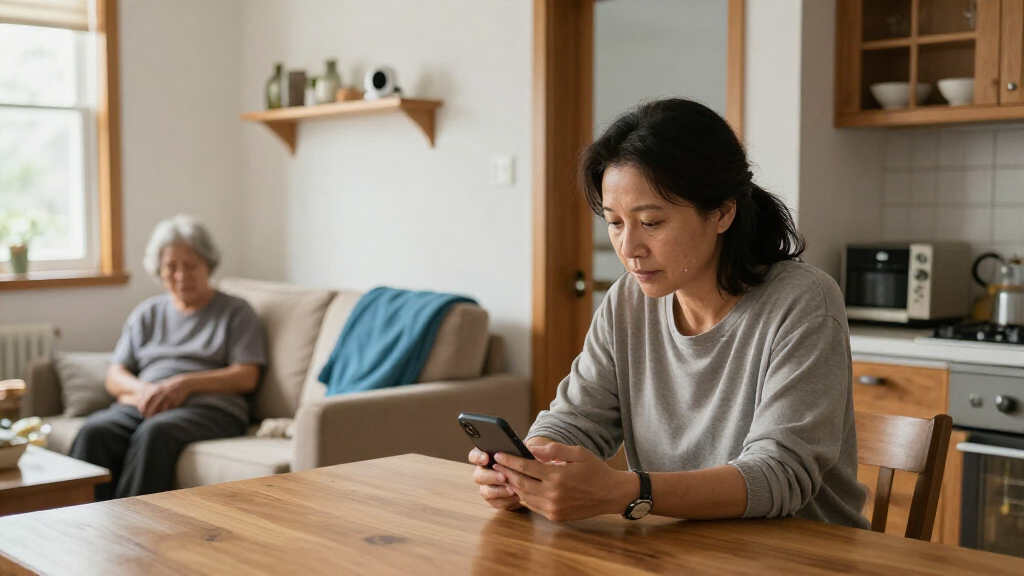
TL;DR
The best indoor camera for aging parents depends on your parent’s wishes, the room you want to check, and the alerts, audio, storage, and security features your household can manage. Compare current Ring Indoor Cam, Ring Indoor Cam 2K, Blink Mini 2K+, and Cinnado 2K specifications, then test the setup with your parent before relying on it. A camera can support visual check-ins, but it cannot guarantee a timely response or replace in-person care, an emergency plan, or a medical alert device.
A camera can show you that the kettle is still on the counter, but it cannot tell you whether your parent wants you watching the kitchen. That conversation is the first step in choosing the best indoor camera for aging parents: agree on the purpose, where the camera may point, and who can view it.

Turn your wind-down time into listening time
- Thousands of audiobooks, podcasts and originals
- Listen on your phone, tablet or Echo — also offline
- Cancel anytime
This guide compares several current indoor camera options using their listed specifications, including Ring Indoor Cam models, Blink Mini 2K+, and Cinnado 2K. You’ll also see how to weigh two-way audio, motion alerts, Wi-Fi, power, storage, and account security against the needs of a real household.
The goal is a camera that makes a respectful check-in easier, not a promise of safety. A camera can miss what happens outside its view, and alerts can arrive late or fail. Before you depend on one, test it with your parent and fit it into a wider care and emergency plan.
Agree with your parent on the camera’s purpose, locations, viewing times, and authorized viewers before installing it.
Compare field-of-view measurements carefully: diagonal, horizontal, vertical, and pan-and-tilt figures describe different things.
Test two-way audio, Wi-Fi, night lighting, alerts, and app controls in the room where the camera will sit.
Check current storage plans, subscription terms, account protections, and outage behavior for the exact model.
Use the camera as one part of a care plan with named responders and a backup check-in method.
Start with the check-in your parent actually wants
The best indoor camera for aging parents is the one your parent understands and agrees to use for a clear purpose. Before you compare resolution or pan-and-tilt features, decide what you want to check: whether a parent is up for breakfast, whether they can hear a check-in, or whether a shared room looks as expected. A camera cannot answer every care question, and the reason for placing it should be specific.
For instance, a daughter who lives two hours away might want to see the living room in the morning after her father has agreed to a daily check-in. He may prefer a phone call instead of an always-on camera feed. That preference matters. A camera that causes distress or feels intrusive is a poor fit even if its image is sharp.
Agree on camera locations, viewing times, and authorized viewers before installation. Shared spaces such as a living room may suit a limited check-in, while bedrooms and bathrooms should generally remain private. Explain how to pause or unplug the device, and revisit the arrangement if your parent’s needs or wishes change.
Consent can take more than one conversation, particularly if someone has memory or decision-making difficulties. Families may need guidance from care professionals or legal advisers. Rules about camera use and audio recording also vary by location, ownership, and the people recorded, so check local law before recording or sharing footage.
A camera supports a care plan; it does not create one. Decide who responds to an alert, how quickly they can act, and what happens if the internet goes down.
Products Worth Considering

Therabody Theragun Relief Massage Gun, 3-Speed, Navy

LEVOIT Vital 200S-P Smart Air Purifier for Large Rooms

Hyperice Hypervolt Go 3 Percussion Massage Gun with Carry Case
As an affiliate, we earn on qualifying purchases.
Compare four cameras by the features you will use
The best indoor camera for aging parents depends less on a single headline specification than on how the camera fits the room and the household. The options below list features that may help you narrow a shortlist, but the same feature can behave differently in daily use. In particular, a wide field of view may show more of a room while also capturing more than your parent agreed to share.
| Camera | Listed view | Audio and connection | Power and other listed details |
|---|---|---|---|
| Ring Indoor Cam (2nd Gen), 1080p | 143° diagonal; 115° horizontal; 59° vertical | Two-way audio with noise cancellation; 2.4 GHz Wi-Fi | USB-A adapter and 6.5 ft Micro USB cable; customizable detection field; one-year limited warranty |
| Ring Indoor Cam 2K | 115° horizontal; 60° vertical | Two-way talk with noise cancellation; single-band 2.4 GHz Wi-Fi | USB-C cable and adapter; customizable motion zones; one-year limited warranty |
| Blink Mini 2K+ | 138° diagonal | Two-way audio with noise cancellation; 2.4 GHz Wi-Fi | Plug-in power; listed dimensions 2 × 2 × 1.57 inches; one-year limited warranty |
| Cinnado 2K pan and tilt | 320° listed viewing angle | Two-way audio; 2.4 GHz Wi-Fi | Wired power; listed color white; dimensions and warranty not specified in the supplied details |
These figures are not a promise that every part of your room will be visible. For instance, the Ring 2nd Gen specifications give diagonal, horizontal, and vertical figures, while the Ring 2K listing gives horizontal and vertical figures. A diagonal number cannot be compared directly with a horizontal number. If you need to see an armchair and the doorway, set the camera in the intended spot and check the live view before settling on it.
Product plans, app features, and recording terms can change. Verify the current manufacturer details for the exact model you intend to buy, including which features need a subscription. Treat listed resolution or AI detection as one part of the comparison—not proof that the camera can recognize an emergency or provide medical-grade monitoring.
Choose alerts that fit your parent’s daily routine
Useful alerts tell you about activity that matters without buzzing your phone every time sunlight shifts across the floor. Look for adjustable sensitivity, activity zones, and schedules, then check whether the model offers person or sound detection and whether those tools need a subscription. These features can reduce irrelevant notifications, but they can still miss events or flag ordinary movement.
Imagine your mother walks through the living room each morning at 7:30 to open the curtains. If motion alerts are active all night and all day, you may receive a stream of routine notices and start ignoring them. A schedule for the hours you actually want to check, plus a zone that covers the chair and doorway, may make alerts more useful—if the model supports those settings.
Among the listed details, both Ring Indoor Cam models mention customizable motion detection areas. The Ring 2K description specifies customizable zones, while the Blink Mini 2K+ and Cinnado details supplied here do not specify motion detection features. That absence in the brief does not prove a feature is unavailable; check the exact listing and current app documentation before you choose.
Newer indoor cameras may use AI-based person filters or sound alerts for events such as alarms. They can make a notification more relevant, but performance varies with lighting, camera placement, and what happens in the room. A family member should still have a clear response plan. For instance, if an alert appears while you are in a meeting, who else can check on your parent?
- Map the routine: Note the hours and shared rooms that matter.
- Set a narrow zone: Exclude windows, televisions, and busy areas when the app allows it.
- Test ordinary movement: Walk through the room, sit in the chair, and see what notifications arrive.
- Agree on backup coverage: Name another person to contact if you cannot respond.
Make two-way audio feel like a conversation
Two-way audio helps when your parent wants to talk through the camera and can comfortably hear its speaker. A camera specification may say “two-way audio,” but that label does not tell you whether voices sound clear from across the room, whether there is a delay, or whether your parent can operate the app. Test those details with the person who will use the device.
For example, you might call your father through the camera while he sits in his usual armchair. Ask him to tell you whether your voice sounds natural, whether he can hear it over the television, and whether the controls confuse him. Then have him speak back while you stand in the kitchen. A faint or clipped voice may make a friendly check-in frustrating rather than reassuring.
The Ring Indoor Cam (2nd Gen) and Ring Indoor Cam 2K list two-way audio or talk with noise cancellation. Blink Mini 2K+ also lists two-way audio with noise cancellation; Cinnado lists two-way audio. The descriptions do not provide a shared sound-quality test, so you cannot infer that one will work best in your parent’s room from those words alone.
Think about the interaction itself. A camera speaker is not a substitute for a phone or a personal alert device if your parent needs to initiate a call for help. Some cameras require a family member to open an app and start speaking. If your parent has hearing, vision, speech, or dexterity needs, check whether the controls and sound work for them, and ask a qualified professional about communication or care equipment when needed.
Place the camera to see enough without exposing too much
Camera placement determines what the viewer can see, how well alerts work, and how much of your parent’s private life enters the frame. Aim at the smallest shared area that serves the agreed purpose. A wider view may cover more floor space, but it can also pull in a neighbor’s doorway, family photos, or a place your parent would rather keep out of view.
Suppose you want to check whether your father is sitting in the living room in the evening. A shelf aimed at the sofa and the entrance may do that job. A camera pointed from the kitchen across the whole open-plan home might also show the dining area, hallway, and parts of other rooms. The first angle is more focused; the second collects more.
Field-of-view figures need careful reading. The Ring Indoor Cam (2nd Gen) lists a 143° diagonal view, along with 115° horizontal and 59° vertical figures; the Ring Indoor Cam 2K lists 115° horizontal and 60° vertical. Blink Mini 2K+ lists 138° diagonal, and Cinnado lists 320 degrees for its pan-and-tilt camera. Because these figures use different measurements and may describe different movement, they do not by themselves tell you how much of a specific room will appear.
Try the view from your parent’s usual seated and standing positions. Check for glare from a bright window, shadows at night, and objects that could block the camera. Keep bedrooms and bathrooms off-limits unless local law and an exceptional care situation call for qualified legal and professional guidance; in ordinary household planning, protect those spaces as private. If the camera moves remotely, agree on who can control it and when.
Check Wi-Fi, power, and storage before you depend on the feed
A camera only helps with remote check-ins when the parts around it work: power, Wi-Fi, app access, and whatever recording method you expect to use. The models in this comparison list 2.4 GHz Wi-Fi, so check the manufacturer’s requirements and test the signal where you plan to place the camera. A strong connection beside the router does not guarantee a reliable feed from a back bedroom.
Power details affect where you can install a camera. The Ring Indoor Cam 2nd Gen lists a 10W USB-A adapter and 6.5-foot Micro USB cable; Ring 2K lists USB-C cable and power adapter; Blink Mini 2K+ is plug-in; and Cinnado is wired. For instance, if the only good view is on a shelf far from an outlet, cable length and safe routing may shape your setup more than resolution. Keep cords away from walking paths and places where they could snag.
Ask what happens during an internet or power outage. Live viewing and remote alerts commonly depend on an internet connection, while local recording behavior varies by model. Do not assume a camera will keep recording or send an alert when the router is offline. If your household has an outage, your backup might be a neighbor, scheduled phone call, or other agreed check-in.
Storage can mean local recording, cloud history, or both, and plans may place different limits on playback, downloads, and advanced detection. Before buying, check current terms, any subscription requirements, how long footage remains available, and how you can delete it. A parent who only wants occasional live check-ins may not need the same recording history as a family trying to review a specific event. Choose the least intrusive option that meets the agreed need.
Secure family access and agree on who responds
Every person who can view or control an indoor camera adds another account to manage. Use a unique password, turn on two-factor authentication if available, keep the device and app updated, and review who has access. These steps matter whether you are sharing a live view with one sibling or giving a professional caregiver temporary access.
For instance, three siblings may each install the camera app on a phone. If one sibling changes phones or a caregiver stops working with the family, remove old access instead of assuming it expires. Decide who can change settings, download footage, share clips, and move a pan-and-tilt camera. Explain those choices to your parent in plain language.
Check the provider’s privacy settings and data practices. Find out whether the service stores video, how sharing works, and which account protections are available. A camera can sit quietly on a shelf, but its feed may travel through an app and a service account; the family should know who can reach it and how to revoke access.
Finally, assign a response for alerts. A notification is only useful if someone sees it and knows what to do. One adult child might cover weekday mornings, while a nearby relative is the backup. Be clear about what warrants a call, a visit, or emergency help. A consumer indoor camera should not be presented as a dependable fall detector or a medical device unless the manufacturer documents that exact capability; ask a qualified clinician about medical monitoring needs.
Set up a small trial before adding more cameras
A short trial shows whether the camera fits your parent’s routine before you build care decisions around it. Start with one camera in one agreed shared room, then test the view, audio, notifications, and access from the family members who will actually use it. More cameras can broaden coverage, but they also expand the privacy footprint and the number of devices to maintain.
Use a simple setup sequence:
- Agree on the purpose and location. Write down what you want to check and which spaces stay private.
- Place and connect the camera. Confirm that the outlet, cable route, and 2.4 GHz Wi-Fi work at the chosen spot.
- Test the image and sound together. Check the view in daylight and evening light, and have your parent speak and listen from their usual seat.
- Adjust alerts and access. Create zones or schedules if supported, add only agreed viewers, and secure every account.
- Review after several days. Ask whether the device feels helpful, annoying, confusing, or intrusive; change or remove it based on that answer.
A real-world trial might reveal that the camera works well in daylight but turns a window into a bright white rectangle after sunset. Or your parent may hear the speaker but dislike the app opening with a loud chime. Those are useful findings. You can move the camera, adjust settings, or choose a different check-in method before treating the setup as part of everyday care.
Keep a backup plan throughout the trial. If the camera loses power or the connection drops, use the agreed phone call or in-person check instead. A camera complements human contact; it cannot promise someone will notice a problem in time.
Frequently Asked Questions
Is it legal to put a camera in a parent’s home?
Rules vary by location and can depend on who owns or occupies the home, who consents, where the camera points, and whether it records audio. Explain the plan to everyone affected, keep private spaces off-camera, and check local law before recording or sharing footage.
Should I use a camera if my parent has dementia?
A camera may support agreed check-ins, but consent, dignity, safety, and your parent’s changing ability to understand the setup all matter. Discuss the situation with appropriate care professionals and, when needed, a legal adviser. Do not treat the camera as a substitute for care or a medical alert system.
Can an indoor camera detect a fall?
Some products advertise fall-related detection, but ordinary indoor cameras should not be treated as dependable fall detectors without evidence for that specific capability. Placement, lighting, blocked views, and movement can affect detection. Ask a qualified professional about suitable monitoring equipment if fall response is a concern.
Can I talk to my parent through an indoor camera?
Many indoor cameras list two-way audio. Test whether your parent can hear the speaker, speak clearly back, and use the controls comfortably from their usual spot. Audio through a camera may not work as well as a phone call for every person or room.
Will an indoor camera work without Wi-Fi?
Remote viewing and alerts commonly require an internet connection. Whether local recording continues during an outage depends on the model and storage setup, so check the current manufacturer details. Plan a phone call, neighbor visit, or other check-in for connection and power failures.
Do I need to pay for a camera subscription?
Not always. Some cameras offer basic live viewing without a paid plan, while cloud history, longer playback, or advanced detection may require a subscription. Check current terms for the exact model and decide whether the included features cover your family’s needs.
How many indoor cameras should I install?
Start with the specific room or situation you have agreed to check. One well-placed camera may be enough for a shared living space; adding cameras increases coverage along with privacy impact, account management, and potential storage costs. Review whether each additional view has a clear purpose.
Conclusion
Choose the camera around the check-in your parent has agreed to, then test the view, sound, alerts, connection, and account access together. The best indoor camera for aging parents is the one that fits those needs and feels acceptable in the home.
Keep a human backup in the plan. A camera can bring a familiar voice into a quiet room, but someone still needs to answer when your parent needs help.